How kids complete a quest
Here's the child's side of the app, so you know what you're asking them to do — and what to say when they're stuck.
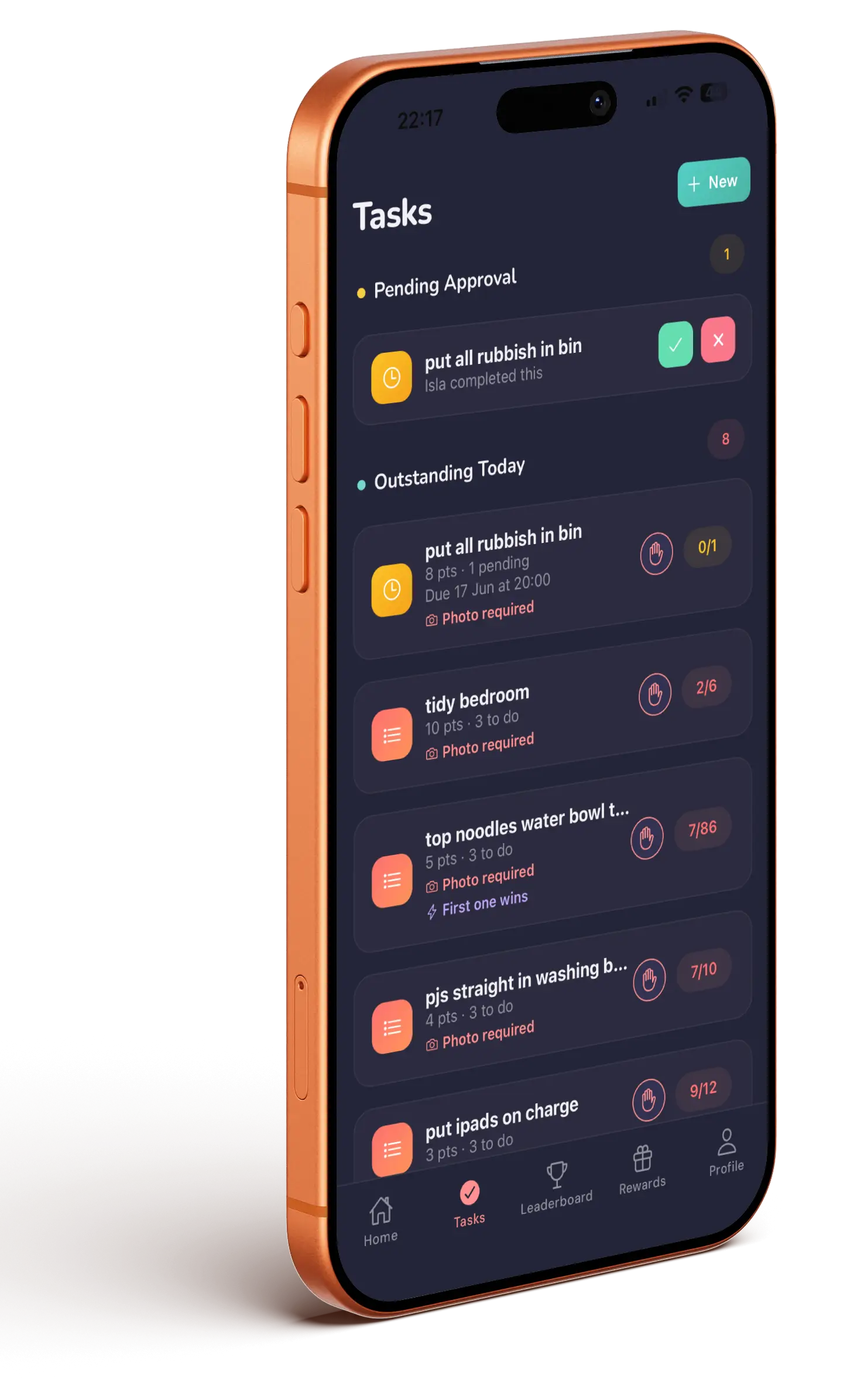
Finding today's quests
Kids open the Quests tab. It's grouped so the urgent stuff is at the top:
- Waiting on Parent — submitted, waiting for you
- Outstanding Today — what needs doing now
- Complete Anytime — no deadline
- Done Today, Not Due Today and Past Quests
Rows are tagged with chips like Overdue, First one wins, Waiting for approval, Approved! and Try again.
Every quest row has a small speaker button. Tapping it reads the quest and its points out loud — built for pre-readers, so a 5-year-old can use the app without you translating. It plays even with the iPhone mute switch on. Rewards have the same button.
Marking one done
- Tap the quest to open it.
- If a photo is required, tap Take Photo and snap the finished job. They can add more than one.
- Add a note if they want to explain something.
- Tap Mark Complete.
It then sits as Waiting for parent approval until you review it.
On a photo-required quest, the button stays disabled until every photo has finished uploading. On a weak connection you'll see a progress ring on the thumbnail, or a Retry overlay if it failed. Tap Retry, or remove the photo and take it again.
If you reject it
The quest comes back with a red banner showing your reason and a Try again button. Nothing is lost — they redo the job, take a new photo, and resubmit the same quest.
Where the points go
Points only land once you approve, not when the child marks it done. On approval they see Great job! Approved by [you] and the points appear in their balance, ready to spend in Rewards.