Settings, co-parents and notifications
Everything in Profile → Settings, plus how to get a second adult into your family.
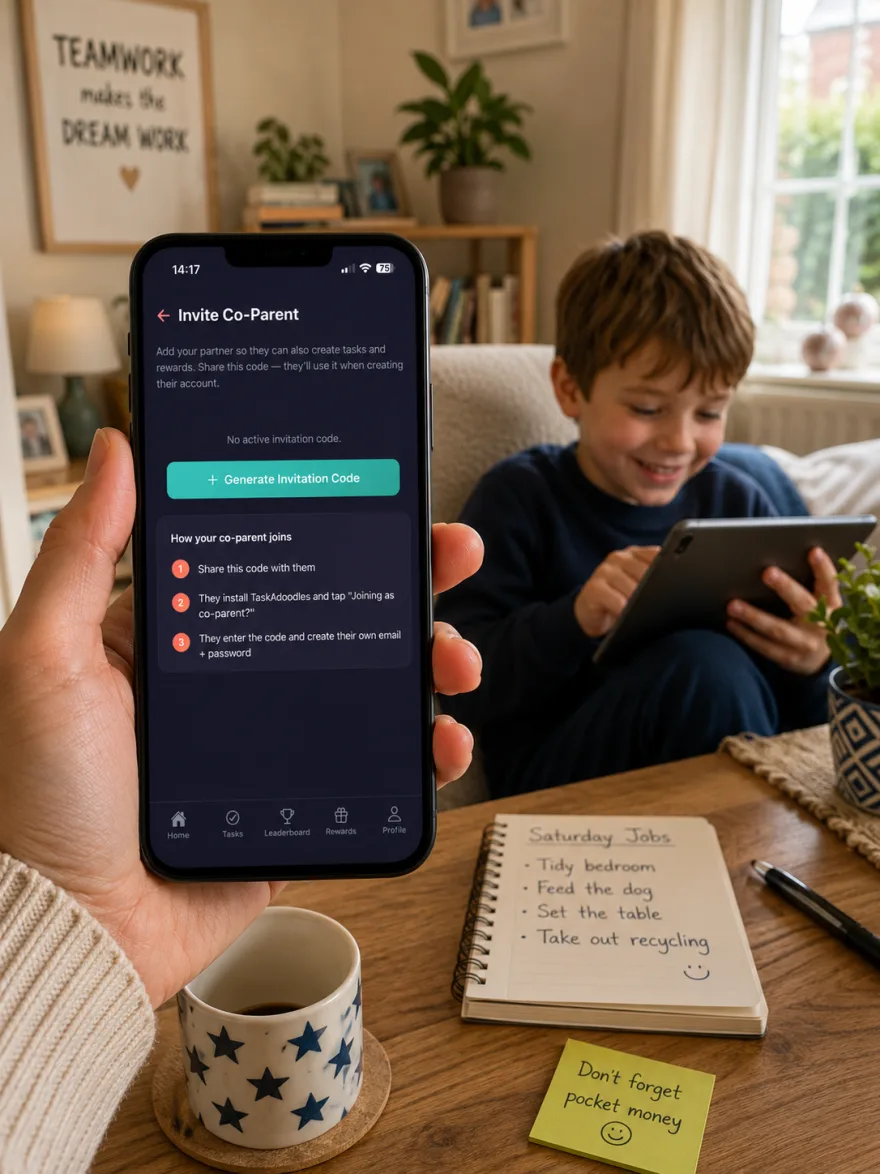
Inviting a co-parent
A second adult gets their own login, sees the same tasks, and can approve work — useful across two households.
- Go to Profile → Invite Co-Parent.
- Share the invite with them.
- They install the app, tap Parent, then Join Existing Family and enter the code.
Once they're in, you can use Co-parent must approve mine on your own tasks so you're not marking your own homework.
Family Settings
- Photo Verification — require photos when children complete tasks. Turning this off hides the photo option everywhere.
- Before Photos — lets you attach a "here's what needs doing" photo to a task. Only available while Photo Verification is on.
- App Restrictions — lock chosen apps when a task with a deadline is missed.
Setting up App Restrictions
This is a three-step wizard: allow the permission, pick the apps to lock, then test it. The test locks the chosen apps for 10 seconds so you can check it works before relying on it.
The app selection is stored on the device it's configured on, so it has to be done on your child's phone — not yours. You'll also need to set a Due By time on any task you want to trigger a lock; without a deadline there's nothing to miss.
App Settings
- Notifications — push notifications for approvals, nudges and reminders.
- Daily reminders — a daily prompt. Only appears when Notifications is on.
- Show me on the feed — controls whether friends see completed tasks, badges and duel wins.
- Dark Mode — appearance.
Check the toggle here first, then check TaskAdoodles is allowed to send notifications in your phone's own system settings. The app can't override that.
Account and family management
- Change Password — parents. Kids get Change PIN instead.
- Family Members — everyone in the family; tap a child to reset a PIN, deduct points or hand over a login.
- Transfer Family Ownership — hand the family over to a co-parent.
- Subscription — your status, renewal, and Restore purchases if you've changed device.
- Delete Account — permanent, and asks for your password. See deleting your account.
What kids can and can't reach
Parent-only screens — subscription, family management, account deletion, support and legal links — are hidden entirely from child accounts. The protection is the login itself: there's no PIN prompt or age gate guarding parent screens, so anyone signed in as you has your access.
If your child uses your phone, sign in as them rather than lending them your session. A child signed in on a parent account can approve their own tasks.