Getting started: create your family account
This is the five-minute version: download the app, create your family, and get your first child added. No card is needed to start.
1. Download and create your account
- Install TaskAdoodles from the App Store or Google Play and open it.
- On the sign-in screen, leave the toggle on Parent and tap Create Family Account.
- Fill in your first name, last name, email and a password (at least 8 characters), then confirm it.
- Set your date of birth. Parent accounts must be 18 or over.
- Give your family a name — something like The Smiths. This is what your kids will see, and it becomes part of their username.
- Tap Create Account.
You get a 14-day free trial from the day you create your family, and we don't ask for payment details up front. Nothing is charged automatically when the trial ends — you simply choose a plan if you want to carry on.
2. The quick tour
After sign-up you'll see two welcome slides explaining the loop the whole app runs on:
- You assign a task
- Kid completes + photos
- You approve, points go in
Tap Show me around and you'll land on your dashboard with a short guided tour. You can replay it any time from your profile via Replay App Tour.
3. Find your way around
There are five tabs along the bottom. One of them changes name depending on who is signed in:
| Tab | What it's for |
|---|---|
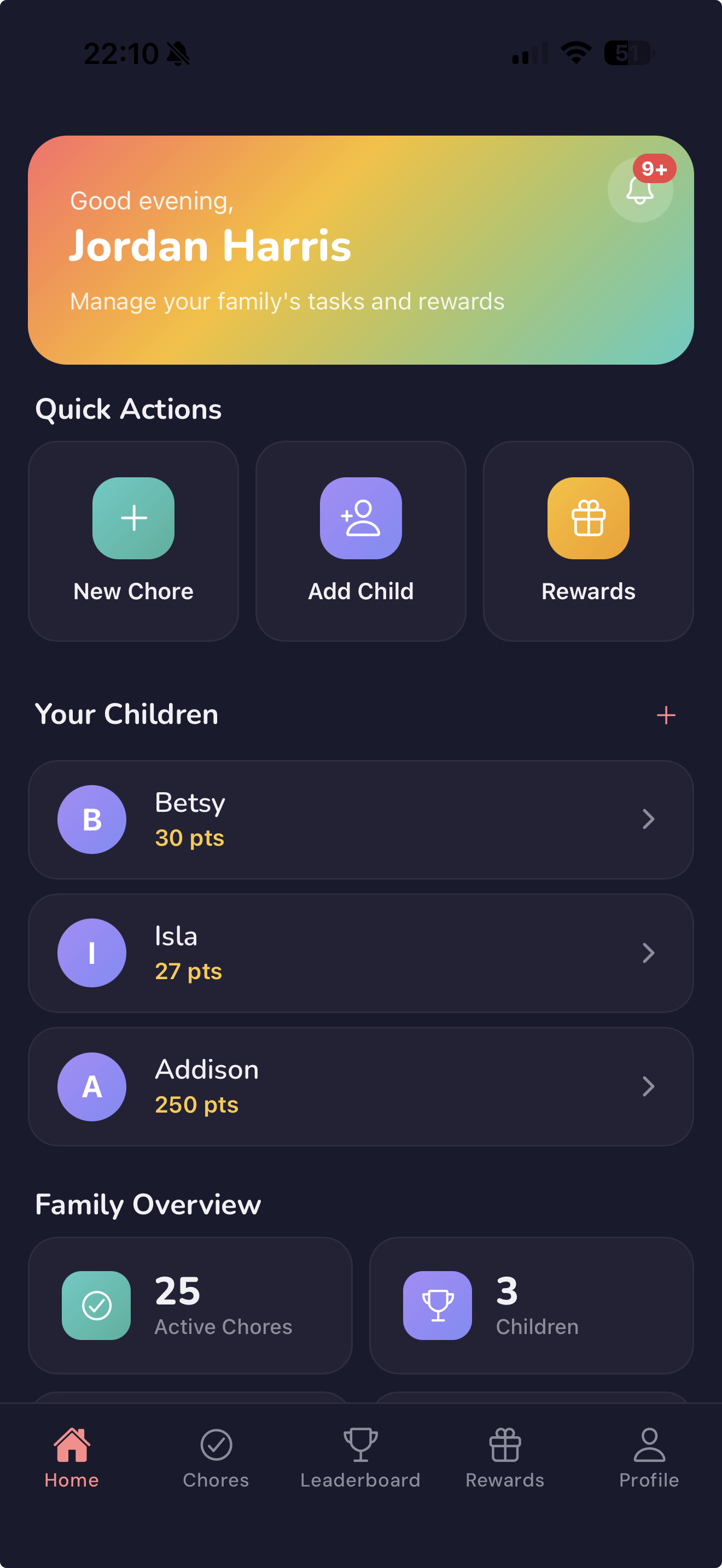
| Home | Your dashboard — pending approvals, your children, and quick actions. |
| Tasks | Every task in the family. Kids see this same tab labelled Quests. |
| Leaderboard | Rankings within your family, and against other families. |
| Rewards | The rewards you set, and the requests kids make to spend points. |
| Profile | Family members, settings, and your account. |
Kids respond better to a quest than a chore. The app quietly changes the wording based on who's signed in — you see Tasks, they see Quests. It's the same thing underneath.
4. Add your first child
Nothing else works until there's a kid in the family, so do this next. From Home, tap the Add Child quick action.
There are two ways to add a child depending on whether they have their own phone or tablet — that's covered in the next guide.