How to create a task
Only two things are actually required: a title and someone to give it to. Everything else on this screen is optional — here is what each option does.
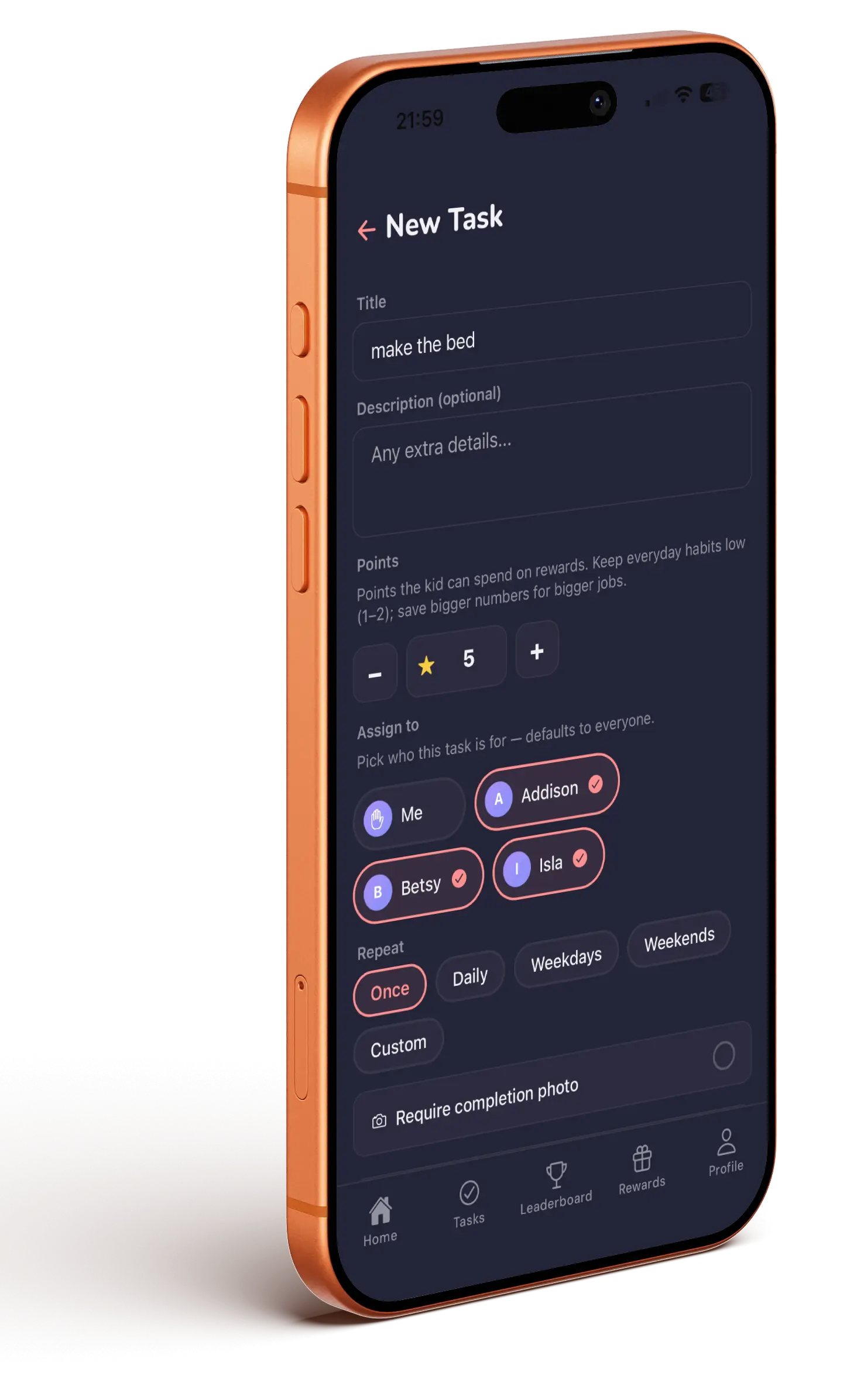
Creating one
- Go to the Tasks tab and tap New in the top corner.
- Give it a title — What needs doing?
- Set the points, pick who it's for, and set a repeat if you want one.
- Tap Create Task.
Points
Points are what kids spend on the rewards you set. The default is 10, and you can set anything from 1 to 500.
Use 1–2 points for things that happen daily — making a bed, brushing teeth. Save the big numbers for the jobs you actually want to incentivise. If everything is worth 50, nothing is.
Assign to
Every child is selected by default, and you can assign a task to yourself too by picking Me. Tap a name to toggle it off.
Only children who have finished joining appear here — see the note in adding a child if someone is missing.
Repeat
Choose Once, Daily, Weekdays, Weekends or Custom. Picking Custom lets you tick individual days — you have to pick at least one.
The toggles
Require completion photo
The child has to attach at least one photo before they can mark it done. Good for anything you'd otherwise have to go and inspect.
First one wins (shared task)
Only appears when a task is assigned to two or more people. The first sibling to complete it gets the points and it disappears for everyone else. Handy for one-off jobs like bring the bins in, and quietly competitive.
Co-parent must approve mine
Only shows when you've assigned a task to yourself and there's a co-parent in the family. Stops you marking your own tasks complete.
Lock apps if missed
Locks chosen apps on your child's device when a deadline passes. This requires a Due By time and needs setting up first — see settings.
Timing
- Start from — leave blank to start straight away. Useful for setting up a task in advance.
- Due By — leave blank if there's no deadline. Tasks past their deadline show an Overdue chip.
Before photo
Attach a photo showing what needs doing — the messy room, the right cupboard. Kids see it on the quest under What needs to be done, and when they submit their own photo you get a clean before-and-after to compare.
Editing and deleting
Tap any task to open it and edit it. To delete, swipe the row in the Tasks list — note that a repeating task asks whether you want to remove just today's copy or all of them. See deleting a child, task or reward.