How to add a child to your family
You can add a child two ways, and you can change your mind later. Pick based on one thing: do they have their own device?
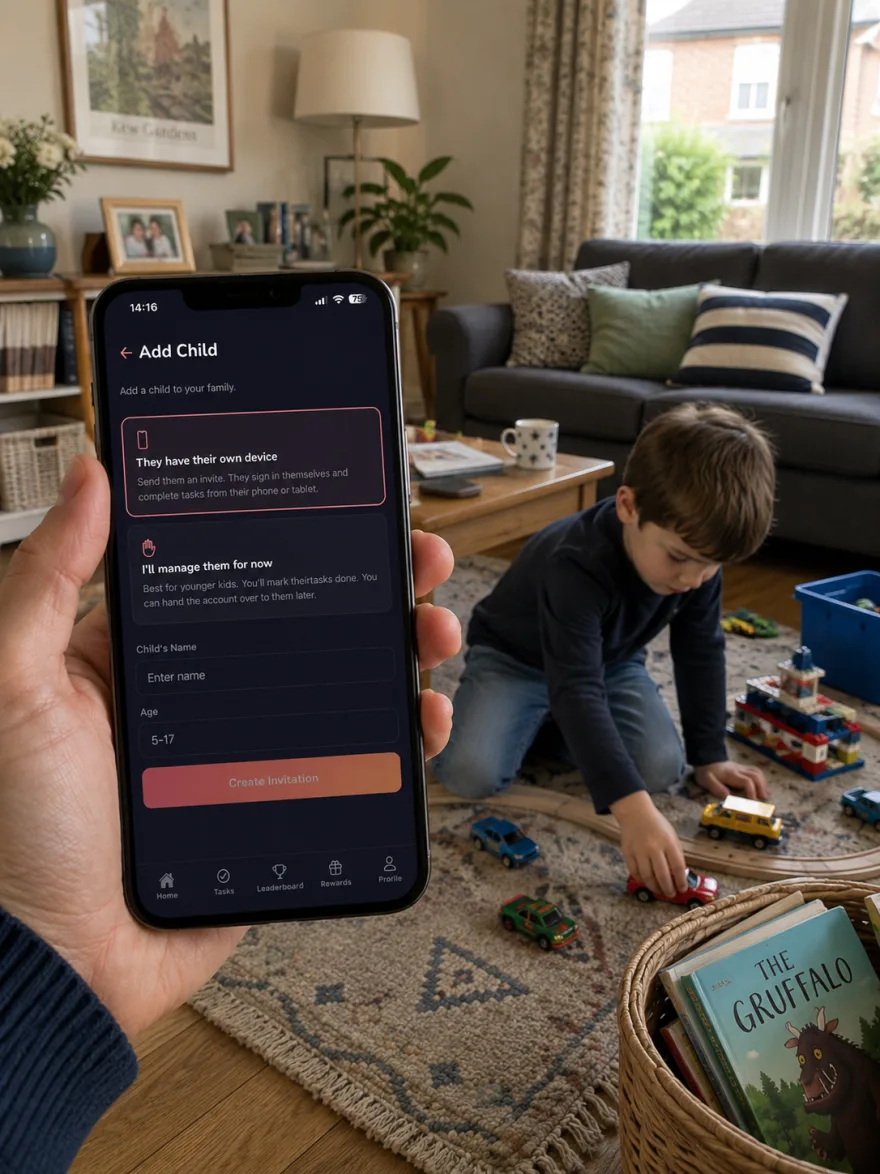
Which option should I pick?
| They have their own device | I'll manage them for now | |
|---|---|---|
| Best for | Kids with a phone or tablet | Younger kids, shared devices |
| Ages | 5–17 | 4–17 |
| They log in | Yes, with a username and PIN | No — you mark quests done for them |
| Photo proof | They take the photo | You take it, or skip it |
Both options only ask for a name and an age. You can hand a managed child their own login later without losing any of their points or streaks.
Option A: they have their own device
- Go to Home and tap the Add Child quick action — or the + next to Your Children.
- Choose They have their own device (this one is selected by default).
- Enter their name and age (5–17), then tap Create Invitation.
- You'll get an 8-character invitation code and a QR code.
- On your child's device, install the app, tap Child on the sign-in screen, then Join Your Family.
- They scan the QR code (easiest) or type the code in, then pick a 4-digit PIN.
If the code has run out, just create the invitation again from the same screen — there's no limit and nothing to clean up.
Option B: you manage them
- Tap Add Child, then choose I'll manage them for now.
- Enter their name and age (4–17) and tap Add.
- That's it — no invite, no login. Open their profile from Home to see their task list and mark things done with the ✓ Done button.
Managed kids still earn points, build streaks and climb the family leaderboard exactly like everyone else. You just do the tapping.
Handing over a login later
When a managed child gets their own device, you don't need to start again:
- Open their profile from Home or Family Members.
- Find the Give them their own login card and tap Generate hand-over code.
- Use that code on their device the same way as an invite. It also expires after 24 hours.
Their points, total earned and streak all carry across.
Need to take a child out of the family instead? See deleting a child, task or reward.
Invited children only become assignable once they've finished joining on their own device. If a name is missing from the Assign to list, that invite hasn't been completed yet. Managed children are assignable straight away.